If you’re designing in multiple languages, here are some tips to make your workflow more efficient.
Start in English
We’re going to assume you’re working in English since you’re reading this blog. Start here. This is also going to probably be the most compact language you’re working in, so get the design where you need it first.
Parent pages are your friend
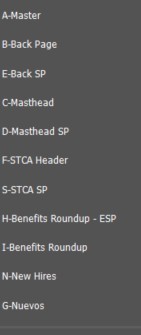
The largest translated job I do is a monthly magazine. Therefore, I have parent pages set up for the masthead, back page, and some of the interior pages with consistent layouts. I make a page for each language version, so when I’m ready to translate, I can just switch the page and many of the elements are complete.
Fonts
The language you’re translating into will most likely use more diacritics than English. Therefore, be sure to set up your initial template with robust fonts that have a large glyph pallet to accommodate any and all punctuation and diacritics you may need to properly set your text.
Build in extra space
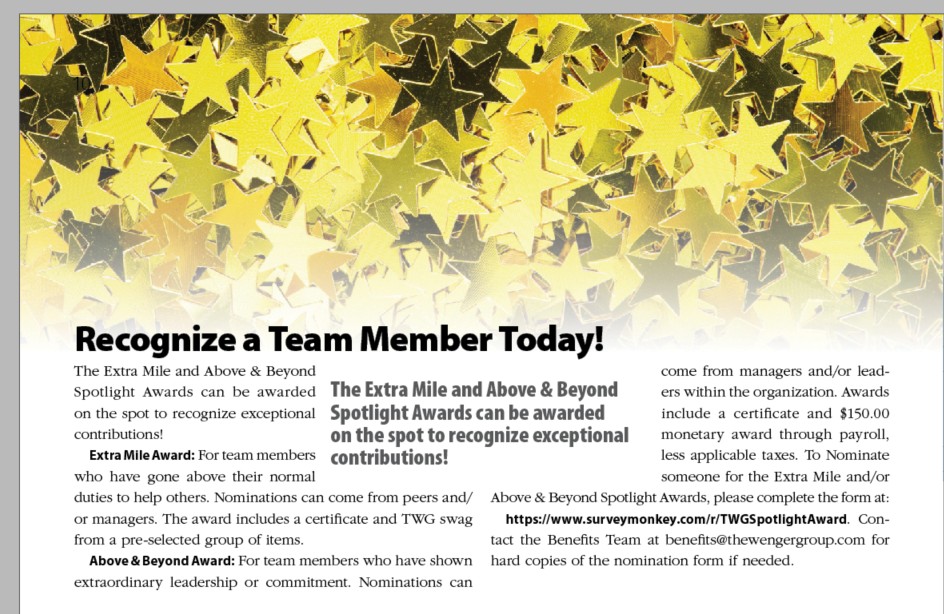
English is a very compact language, so chances are you’ll need more space to set the text in another language – particularly Spanish. Build in some extra space in the layout or add items like extra photos or pull quotes that can be easily removed to accommodate more text.
Find a good translator or vet your AI translation
I worked with a local company to translate my text. After the first job, I sent samples to native speakers of my target language to review. I recently moved to an AI translation tool but again didn’t proceed without input from native speakers.
Learn the basics
The first language I translated work into was Spanish, and I’ve been working on becoming fluent for several years. This comes in really handy when setting text. I’ve also learned some basics about the language that differ from English. For example, months are not capitalized in Spanish.
Avoid PDFs and elements with embedded text
I once got a group of files from a Human Resources team that were from a vendor. They were standard instructions for some benefits applications. The trouble is they were all in English. I had to recreate them in the next target language, which was time consuming. When I receive files like this now, I ask for individual files or I take them apart before including them and set the text as text in InDesign. This way, I’ll have text to translate when working on the next version.
Extend your deadline
I built in an extra week for every project to accommodate the time it requires to return the translation and set the new text. Even if you’re using an AI tool to translate, it will still require some time to reset all the text. Be sure you have it.
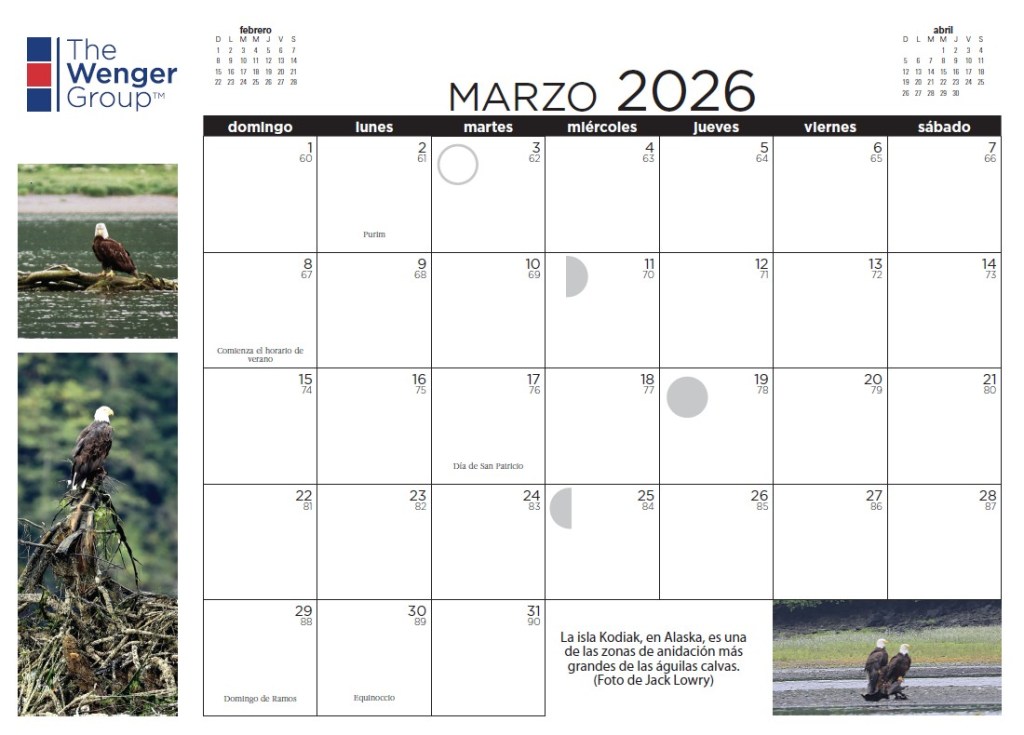
This is particularly true for a job like a calendar where each piece of text is in a separate text box. Evaluating the project ahead of time can give you an idea of the amount of work required.
Treat them equally
Your goal in any project is to communicate clearly and with intention. Treat your translation the same way and have both projects look terrific and drop at the same time. Your translation should be just as stunning as the original and arrive in the same time period.
Finalize one draft before moving on
Get every single change to this draft first before attempting a second. You may be waiting for approvals and tempted to do a page or two in your second language. Resist. It’s going to be more efficient if you can put a bow on that first version first before cracking the second. This is also where the extra time will be your friend.
Buena suerte



 Cher Time